


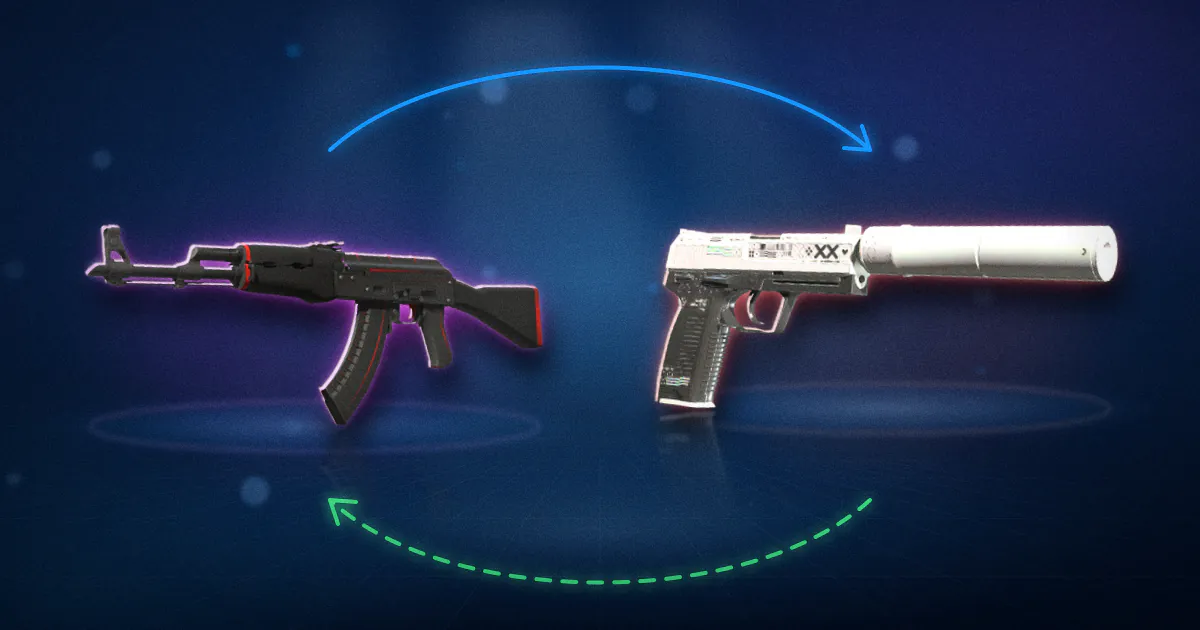
What are the ways to trade CS2 skins?
There are four common routes. They differ in who is on the other side, what it costs, and whether you can ever turn the result into cash.
| Route | Who you trade with | Cost | Cash out? |
|---|---|---|---|
| Steam trade offer | A friend, or anyone who gave you their trade URL | Steam's trade offer FAQ lists no fee | No, it is item for item |
| Steam Community Market | Any Steam user, for wallet money | 5% Steam fee plus 10% CS2 fee | No, wallet money only |
| Peer-to-peer (P2P) marketplace | Other players, who send items straight to buyers | Seller fees such as 2% on CSFloat, 2.5% on BUFF Market, 5% on White.market and 8% on Skinport; 0% for buyers on all four | Yes, from sale proceeds |
| Bot trading site | The site's own stock, held on bot accounts | Built into prices, for example 5% to 20% on Tradeit.gg instant sell and 8% plus 0% to 20% on Swap.gg | Some sites yes, some never |
Fees come from each site's review record, checked in September 2026. The marketplace fees page has the full list.
Two short definitions help here. In P2P trading, the site matches a buyer and a seller and the seller's own Steam account sends the skin. In bot trading, you trade with an account the site controls. Our guide to CS2 trade bots explains how bot sites set their prices.
How do you send a Steam trade offer step by step?
A trade offer is a prepared trade you send to another player. Unlike old live trading, you do not both need to be online. Valve's Steam Trade Offers FAQ gives these steps:
- Open Steam, in the app or a browser.
- Hover over your name at the top and click Inventory.
- Click Trade Offers, then New Trade Offer.
- Pick the friend you want to trade with. For someone who is not on your friends list, open their trade URL instead.
- Drag the items you will give and the items you want into the two trade boxes.
- Tick the box to confirm the trade contents and click Make Offer.
- Confirm the offer in the Steam Mobile App, or by email if you do not use the Mobile Authenticator.
You can also start from a friend's profile: click the "..." button, then Offer a Trade. To answer an offer you received, open it from your Trade Offers page, where you can accept, decline or change it into a counter offer.
Every trade must be confirmed, and Valve says there is no way to opt out. Use that step. It shows the account and the exact items, and it is your last chance to catch a mistake.
To trade with someone outside your friends list, you need their trade URL, and they need yours. Our guide on finding your Steam trade URL shows where it is on each device and why it is safe to share.
What do you need before you can trade?
Steam blocks trading on accounts that are new to security features or recently changed. The full list is on the Trading and Market Restrictions page. Before your first trade, check that:
- Steam Guard has been on for 15 days. Without it, you cannot trade at all.
- You have the Steam Guard Mobile Authenticator. It lets you confirm trades on your phone. After 7 days with it, new devices no longer block trading.
- You have not reset your password recently. A reset blocks trading for 5 days, or 30 days if the account sat unused for over two months.
- Your inventory is public if a website needs to see your items.
- The item itself is tradable. Items bought on the Steam Market or in the game cannot be traded until the date shown on the item in your inventory.
If a trade will not go through, Steam usually shows the reason when you try. The trade hold calculator tells you when a locked item frees up.
How do you know if a trade is fair?
Price both sides with the same source before you accept. Which source you use changes the answer more than most traders expect.
Say someone offers you a USP-S | Printstream (Field-Tested) for your AK-47 | Redline (Field-Tested). Here are three ways to price the same trade:
| Price source | AK-47 Redline (FT) | USP-S Printstream (FT) | Gap |
|---|---|---|---|
| Cheapest cash listing | $24.41 | $30.70 | $6.29 |
| Skinport 30-day median sale | $28.38 | $37.01 | $8.63 |
| Steam Market lowest listing | $35.89 | $45.45 | $9.56 |
Source: CSRated price snapshot, 2 October 2026.
Every source agrees the USP-S is worth more, by roughly a quarter to a third. But the dollar gap runs from $6.29 to $9.56. If you add value to balance the trade, agree on the price source first. Steam prices run higher for everything, so mixing a Steam price on one side with a cash price on the other is the easiest way to get fleeced.
Our trade evaluator adds up both sides at market prices and shows the difference in dollars and percent. For two specific skins, the compare skins tool puts their prices per wear side by side. Price alone is not the whole story for rare items: float, pattern and stickers can make one copy worth far more than another.
What happens after you accept a CS2 trade?
The items move at once, but they are not fully yours to pass on yet. Valve's Trade Protected Items FAQ says every CS2 item received in a trade is Trade Protected for 7 days:
- You can equip it and use it in the game straight away.
- You cannot trade, sell, modify or consume it, or move it into a Storage Unit.
- The other player can reverse their trades from the last 7 days. If they do, all their recent trades with protected items are undone, the items go back, and their own account gets a 30-day trade and Market cooldown. Your account is not restricted.
CS2 items do not get the old 15-day trade hold, because Trade Protection replaced it for this game. The practical lesson: a trade is not final for 7 days. Do not pass on a skin you just received, or pay for it outside Steam, assuming it cannot come back. Our guide to trade protection and reversals covers the rules in depth.
Should you trade directly, on a P2P market or with a bot?
Each route suits a different goal.
Trade directly with a friend when you know the person and both of you just want to swap skins. There is no site fee. The risk is the other person, so price both sides honestly and keep everything in one offer.
Use a P2P marketplace when you want to sell for cash or buy at the lowest price. Sellers pay a fee, buyers usually pay none, and the site handles payment. Expect an identity check before your first withdrawal on many of them. Our best marketplaces for beginners list compares the easiest places to start.
Use a bot site when you want an instant swap without waiting for a buyer. You pay for that speed in the prices. Check whether the balance you end up with can ever be withdrawn: on SkinsMonkey it cannot, and on Tradeit.gg and Swap.gg only money from sales can be cashed out, not trade balance.
Use the Steam Market only if you want Steam Wallet money. Our Steam Community Market guide explains why Steam prices run about 40% above cash markets.
Which trades should you never accept?
Valve's Recommended Trading Practices and Scam FAQ name the trades that most often end in a loss. Say no to:
- Skins for money outside the offer. You cannot put PayPal, wallet credit or gift cards into a trade offer, so a promise to pay "after" has nothing behind it.
- Lending or "trust" trades. If you give an item to someone, nothing makes them return it.
- Trades split into steps. A trade offer can hold any number of items, so there is no reason to send yours first and wait.
- Middlemen. Valve says a middleman can impersonate a trader, work with a scammer, or keep the item.
- "Verification" requests. No one needs your skin to check that it is real or not duplicated.
- Players posing as trade bots. A user tells you to send items to "the bot", then blocks you and keeps them.
- "Buy this on the Market for me." A scammer asks you to buy a cheap item at a high price so they can trade you something better. The seller is their partner.
Trade redirection is the other big risk. A scammer with access to your account cancels a real offer and sends a copy to a lookalike account, hoping you confirm without reading. Valve's trade redirection page says your API key should never be shared, and that anyone contacting you about your items outside the Steam Support site does not represent Steam. Our guide to Steam API key scams shows how it works.
What should you check before you confirm a trade?
Run through this list every time, on the confirmation screen in your phone:
- The account. Is the name, profile and Steam level the one you expect? Valve says to check how long you have been friends and how old the account is.
- Every item. Hover over each one. Check the exact name, wear, StatTrak and stickers.
- Nothing extra. Make sure no item was added or removed since you agreed.
- The price source. Both sides valued the same way, ideally in the trade evaluator.
- Any link you were sent. Paste it into the scam link checker before you sign in through it.
- No pressure. Valve's Steam Trading FAQ says scammers rush you so you miss a change. A real trade will still be there in ten minutes.